Introduction
DialogueExtractor is a plugin developed by MyAudioFactory. It isolates clean dialogue from audio source, locking the soundstage and spatial cues in place—no metallic artifacts, no over-suppression, just natural, focused speech. By fusing state-of-the-art AI with proven signal-processing methods, it delivers benchmark-level separation quality. The plug-in is built for native multichannel operation, so you can re-weight dialogue against backgrounds without collapsing the mix image.
Use it to de-noise voice tracks, tighten post-production dialogue, or add clarity to multi-speaker content. For surround, Atmos, or any immersive format, DialogueExtractor is the fastest route to intelligible, mix-ready speech.
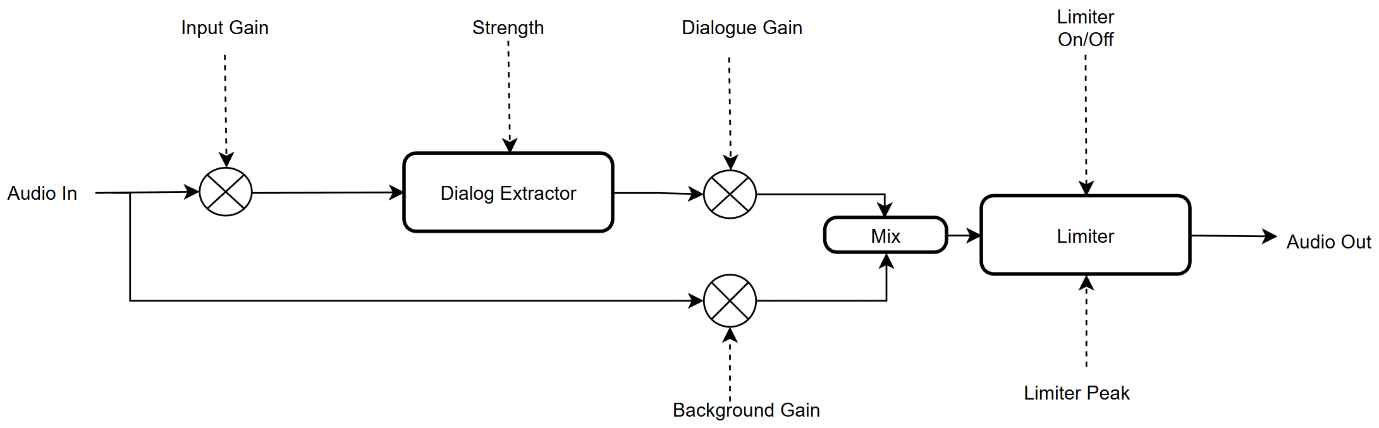
The flowchart for DialogueExtractor is as follows:
How to Install
For Windows, unzip the downloaded DialogueExtractor_Plugins_Installer.zip file, right-click the vst3_installer.bat or vst_installer.bat script, and run it as an administrator.
By default, the VST3 plugin will be installed to:
By default, the VST plugin will be installed to:
By default, the AAX plugin will be installed to:
For macOS, run the downloaded DialogueExtractor_Plugins_Installer.pkg and follow the prompts in the Apple installer to complete the installation.
After installing the plugins, most Digital Audio Workstations (DAWs) can find the installed plugins automatically after being reopened. If not, you may need to manually rescan for plugins from the DAW's options.
How to register with Activation Code
Copy your activation code into the text field in the license window (open it by clicking the “License” tab at the top left of the UI), and then click "Confirm". If you would like to take advantage of a free trial, start DialogueExtractor and click the "FreeTrial" button in the license window.
Trial Limitations
“FreeTrial” is limited to limit days and the total duration for processed audio files is limited to 3000 seconds. The processed audio has random 1-second intervals of silence every 120 seconds.
If the trial restrictions hinder your experience, feel free to reach out to us to get an unlimited trial version.
How to Transfer an Online License to Use on Different PCs
Once you activate the plugin with an online license activation code, a "Deactivate" button will appear on the license window. If you want to use this plugin on other PCs, please click the "Deactivate" button on this PC to release the license. Then, you can use your online license activation code to activate it on other PCs.
The license is automatically released if the plugin is not launched for 24 consecutive hours. You can then activate it on another machine without first clicking the ‘Deactivate’ button.
How to register with License File
The License File is designed to activate the plugin on a PC without an internet connection.
- Click the ‘Request’ button in license window, save the request file, and send it to us. We will send back a License File based on the request file.
- Click the ‘License File’ button in license window to select the License File for this host, then click the ‘Apply’ button to activate the plugin.
How to change a Setting value
The sliders can be adjusted by dragging it or using the mouse wheel. For more precise value changes, hold the SHIFT key while adjusting. Additionally, you can edit the value directly by double-clicking the value field.
Tech Spec
It supports the following sample rates:
16 kHz, 22.05 kHz, 24 kHz, 32 kHz, 44.1 kHz, 48 kHz, 64 kHz, 88.2 kHz, 96 kHz, 176.4 kHz and 192 kHz.
It supports 1–8 channels with the following layouts:
Mono, Stereo, LCR, LRS, LCRS, 5.0, 5.1, 6.0, 6.1, 6.0-Music, 6.1-Music, 7.0, 7.1, 7.1-SDDS, 5.0.2 and 5.1.2.
Latency
| Sample Rate | Latency when input channel number≥2 | Latency when input is Mono | ||
|---|---|---|---|---|
| in samples | In seconds | in samples | In seconds | |
| 44.1 kHz | 1589810 | 36.05011 | 1224662 | 27.77011 |
| 48 kHz | 1728960 | 36.02 | 1332736 | 27.76533 |
| 16 kHz | 576920 | 36.0575 | 444440 | 27.7775 |
| 22.05 kHz | 795128 | 36.06023 | 612554 | 27.78023 |
| 24 kHz | 865240 | 36.05167 | 666520 | 27.77167 |
| 32 kHz | 1153560 | 36.04875 | 888600 | 27.76875 |
| 64 kHz | 2306976 | 36.0465 | 1777056 | 27.7665 |
| 88.2 kHz | 3179488 | 36.04862 | 2449192 | 27.76862 |
| 96 kHz | 3460528 | 36.04717 | 2665648 | 27.76717 |
| 176.4 kHz | 6358260 | 36.04456 | 4897668 | 27.76456 |
| 192 kHz | 6920416 | 36.04383 | 5330656 | 27.76383 |
Settings
1. InputGain
Input gain applied to the audio before extraction. For best results, keep the peak of input audio level above –32 dBFS and below 0 dBFS.
2. Strength
Controls how aggressively dialogue is extracted from the audio.
3. DialogueGain
Gain applied to the extracted dialogue audio.
4. BackgroundGain
Gain applied to the original audio before it is mixed with the extracted dialogue. (Applies only when MixBackground mode is selected.)
5. LimiterPeak
Limiter Peak parameter to determine the peak value of output audio samples when limiter is enabled.
6. Limiter On/Off Switch
Apply a low distortion Limiter for final audio samples output or not. The peak value of the limiter is determined by the Limiter Peak parameter. When the limiter is turned off, it is bypassed.
7. ReAnalyze
This button triggers forced dialogue extraction for the selected audio source, even if the audio has already been processed. This function is only available when the plug-in is loaded in ARA mode.
8. Clean Cache
This button clears all cached analysis results — the data stored with your project to skip re-analysis on subsequent project openings. After clearing the cache, it automatically runs dialogue extraction on the selected audio source. This function is only available when the plug-in is loaded in ARA mode.
Running Mode
This plug-in is an offline-processing effect; please use it in your DAW’s offline/bounce mode. If you instantiate it in real time, it will still work, but only at the cost of very high latency.
ARA Mode
This plug-in supports ARA 2.0 and functions as an ARA extension in compatible DAWs including Reaper, Studio One, Cubase and more. To utilize its ARA capabilities, enable ARA support within your DAW’s preferences and follow the software’s native workflow instructions to load the plug-in.
When loaded as an ARA plug-in, the tool will automatically extract dialogue in the background using your current parameter settings.
Modifying the Strength parameter will automatically re-run dialogue extraction using the updated Strength value. All other parameters operate in real time and do not initiate a new dialogue extraction process.
Frequency Ask Questions
1. Where is the license window?
Click the “License” tab in the upper-left corner of the interface.
2. Does an online license require a constant internet connection?
No. The software only needs to connect periodically to sync. After the connection is lost, it continues to work for several days.
3. Does a single-user license need to sync periodically?
No. It only needs an internet connection once, during registration. After that, it runs fully offline.
4. Why is part of the output audio missing?
The plugin introduces high latency. Most DAWs automatically compensate for this delay and preserve the processing tail, while some require you to explicitly enable an "Adding Tail" option to ensure the full processed audio is included. A few DAWs also leave the leading silence caused by plugin latency intact; if that happens, consult the latency section to trim the silence and realign the audio.
5. Why Does ARA Analysis Fail?
ARA analysis can fail for several common reasons: your DAW may be occupied with other tasks and block the plug-in from accessing audio data, or the audio source may not be fully loaded/decoded and ready for reading. If an ARA analysis failure occurs, click the “ReAnalyze” button to retry the process.
Known Issue
N/A
Support Information
For technical support or assistance, please contact MyAudioFactory through one of the following channels: